
Every worker. Every shift.One calm workspace.
Candidates, gangs, clients, roster, pay and alerts, with your whole team working from one live picture all day. Nothing slips, and nobody has to chase.
One action sets off the next. Nobody chases.
Set things up once and Scout carries them through the whole week: from the first booking to the record you keep afterwards.
Set it up once
Rates, standard pay, roles and agreed rates are kept by the people who should keep them.
Owners and administratorsPlan the week
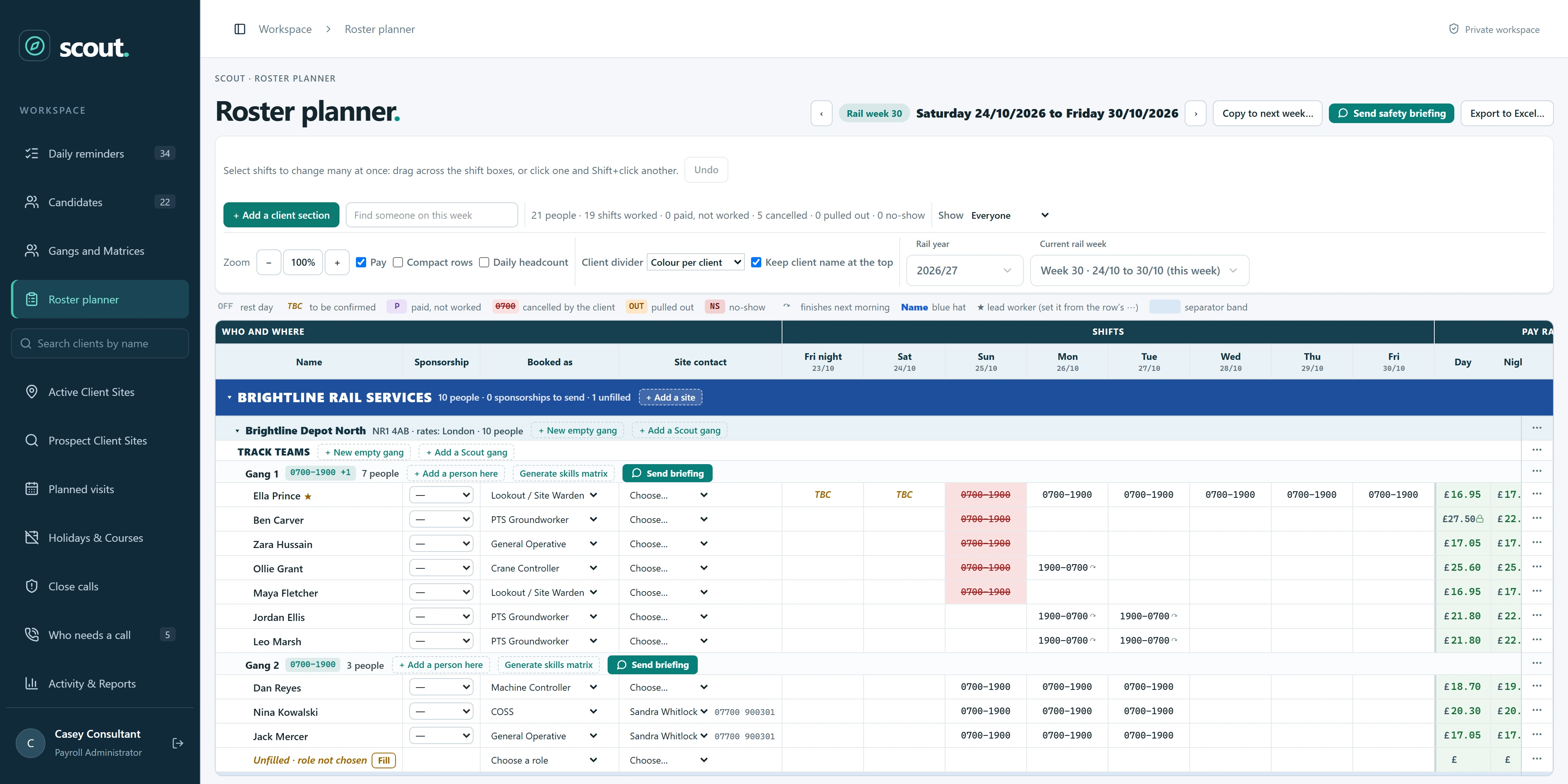
Drop people into gangs and shifts. Choose a role and the pay fills in for you.
The roster plannerPay stays protected
A floor, a sensible limit, and a one-click way to ask for more.
Built-in rulesThe right people hear
Red alerts reach payroll and approvers the moment they matter, and stay until done.
Alerts that stand outIt all goes on record
Notes and shift history are kept for good, with who did what and when.
A permanent historyYour whole team, working as one.
Everyone sees the same picture all day. Hand work to a colleague, share a list, send a nudge, and know the moment it is done, without a single message chasing it.
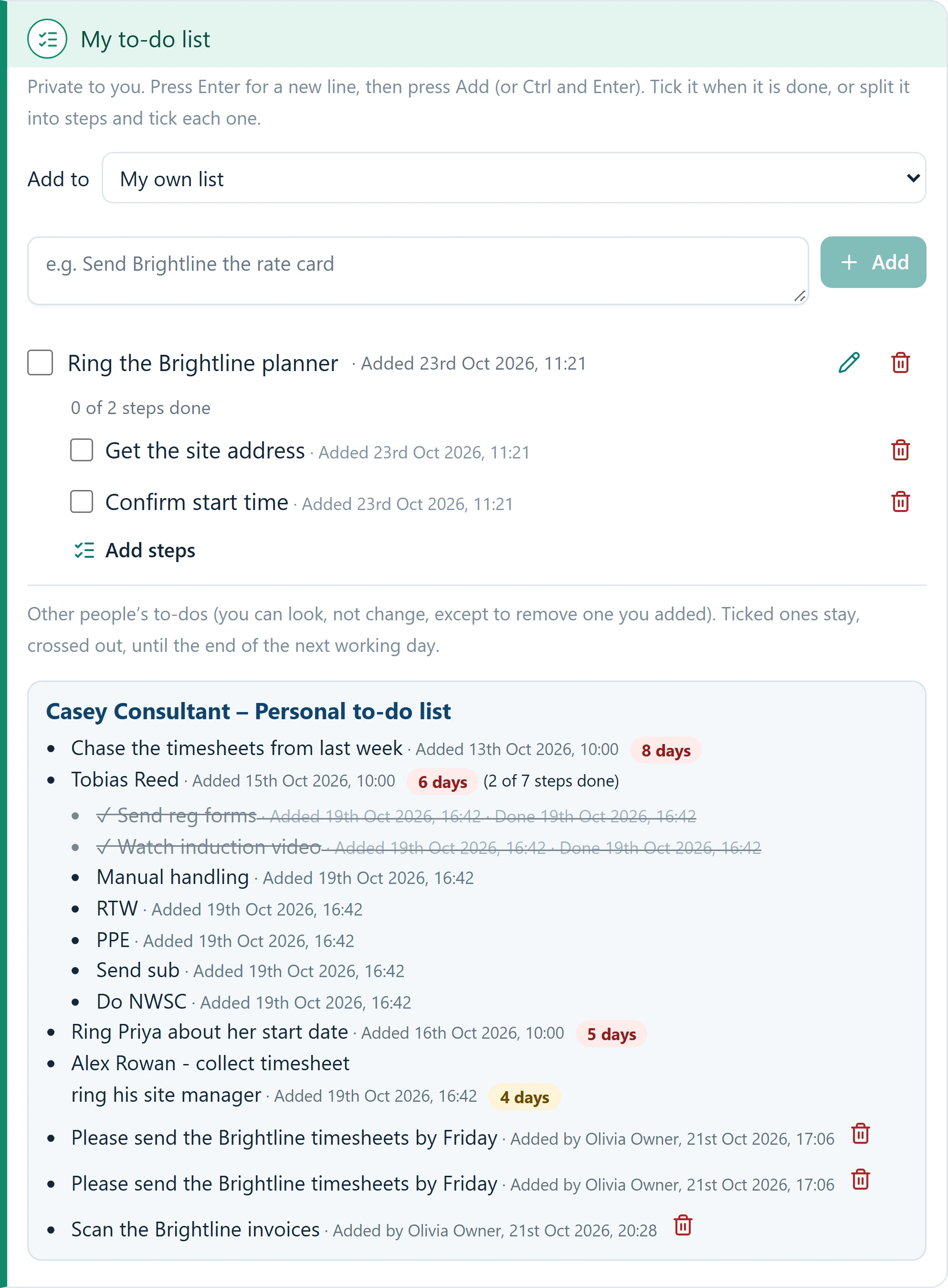
Everyone has a to-do list. You can add to anyone's.
Each person gets their own list when they sign in. Owners and administrators can drop an item onto a consultant's list, and it shows who added it. When it is ticked off, the person who set it is told.
- Add to your own list, or choose a colleague from a drop-down
- Split a job into steps and tick them off one by one
- Ticked items stay crossed out until the end of the next working day
- Anything left too long turns amber, then red, for everyone to see
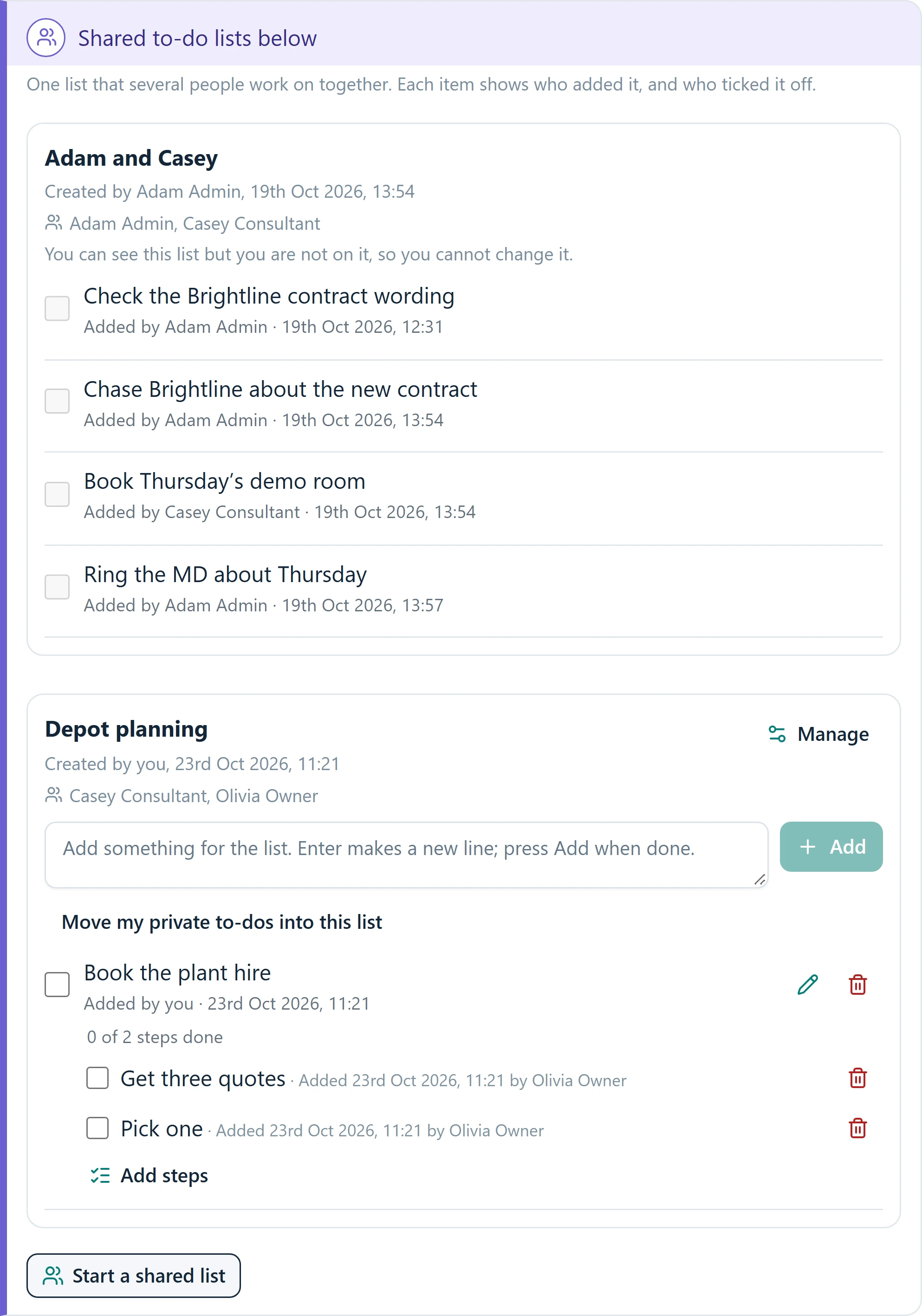
One list, several people, nothing lost.
Start a list with the colleagues you choose. Everyone on it can add items and tick them off, and every line shows who added it and who finished it. It is a shared whiteboard that never gets wiped.
- Pick exactly who is on each list
- Each item shows who added it and when
- Move your private to-dos into a shared list in one click
- Colleagues who are not on a list can see it, but not change it
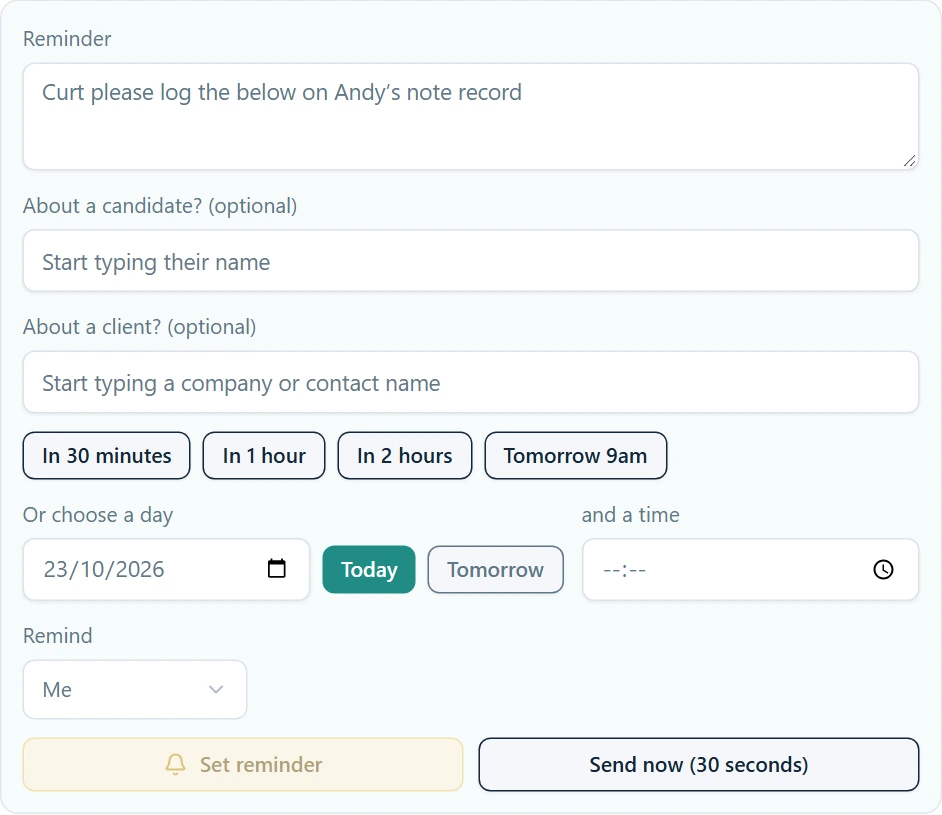
Nudge a colleague. It lands on their screen.
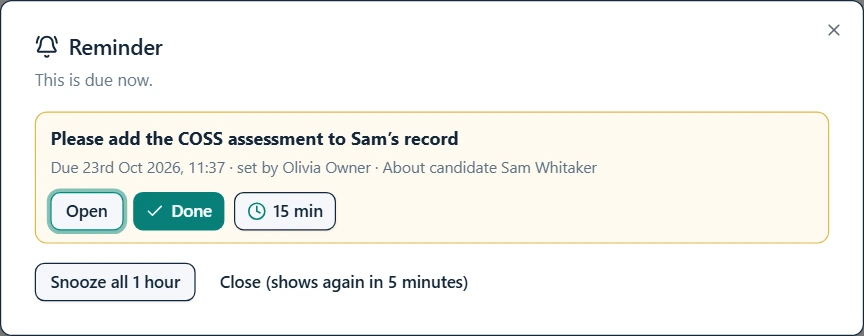
Write a reminder, attach a candidate or a client, choose who it is for and when. At that moment it pops up in front of them with a single click to open the record. When they press Done, you can see it was done.
- Pick a time, or send it now and it arrives in seconds
- Link it to a candidate or client so the record opens in one click
- The receiver can snooze it, but never lose it
- See everything you have set for others, and cancel any you no longer need
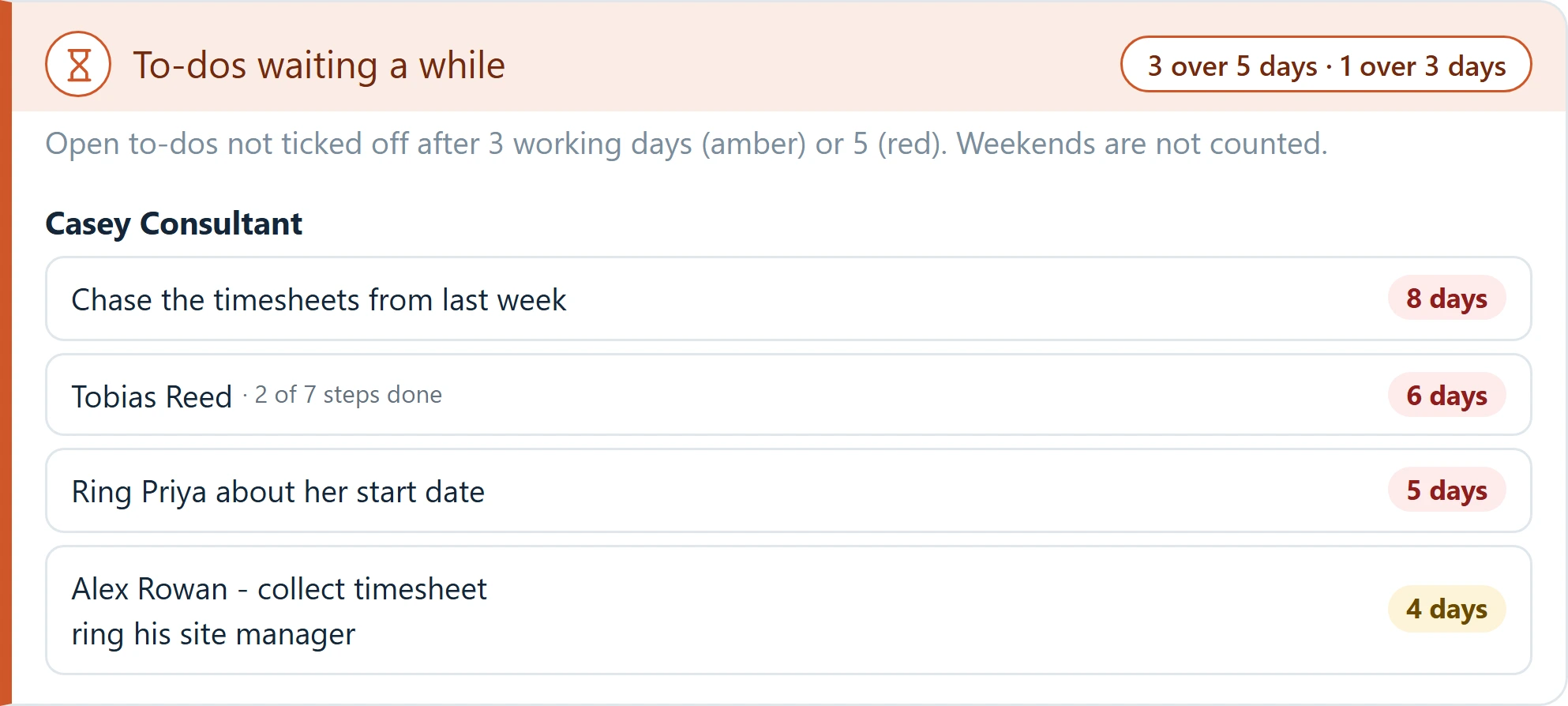
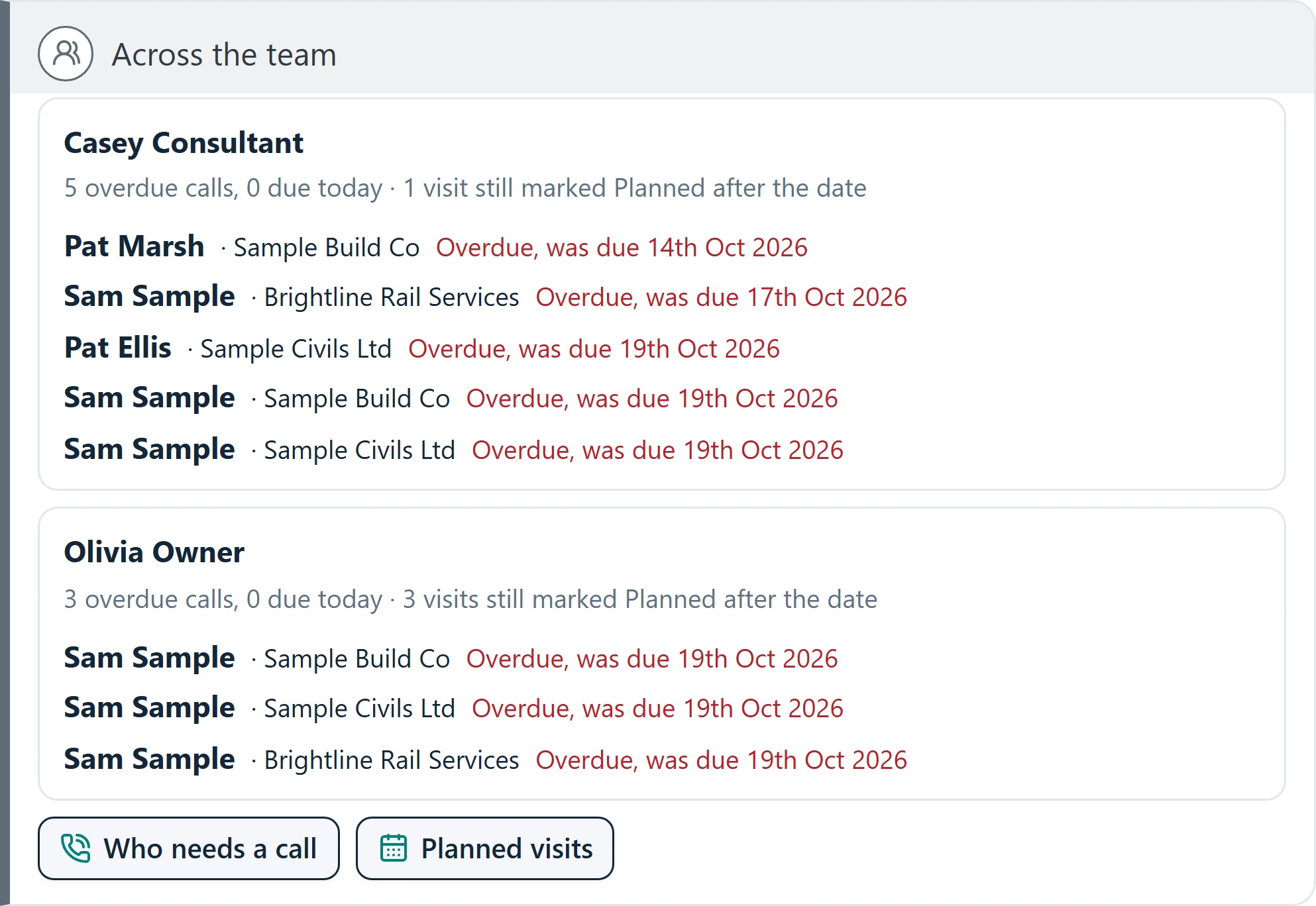
See who is stuck, before it becomes a problem.
To-dos that wait too long and calls that are overdue are gathered by person, so the right conversation happens early. No spreadsheets, no Monday-morning surprises.
- Open to-dos flagged after three working days, red after five
- Overdue calls and unconfirmed visits, listed by colleague
- A tap through to the full call list or planned visits
Everything a busy week asks of you, in one place.
Built around how rail labour is really booked, not around how software usually works.
The whole rail week, at a glance.
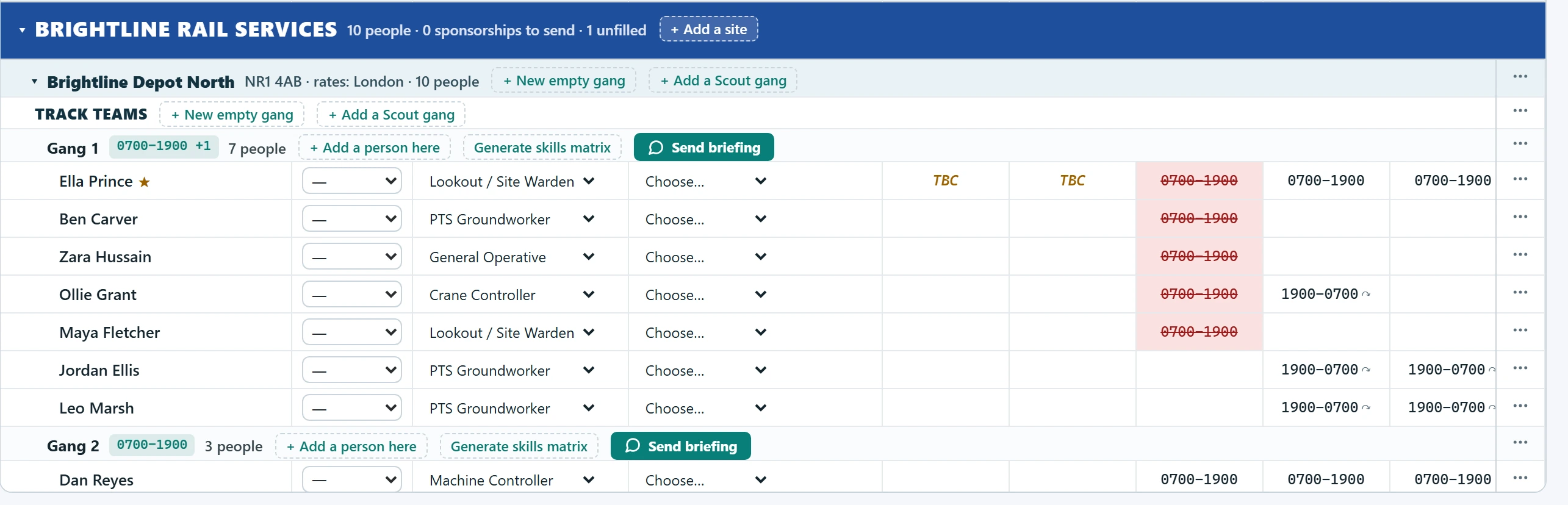
Plan by client, site and gang. Select a block of shifts and change them all at once, the way you would in a spreadsheet.
- Gangs and sites laid out by client, colour-coded
- Copy last week forward in one click
- Send the safety briefing to a gang straight from the roster, with one button
- Export the week to Excel whenever you need it
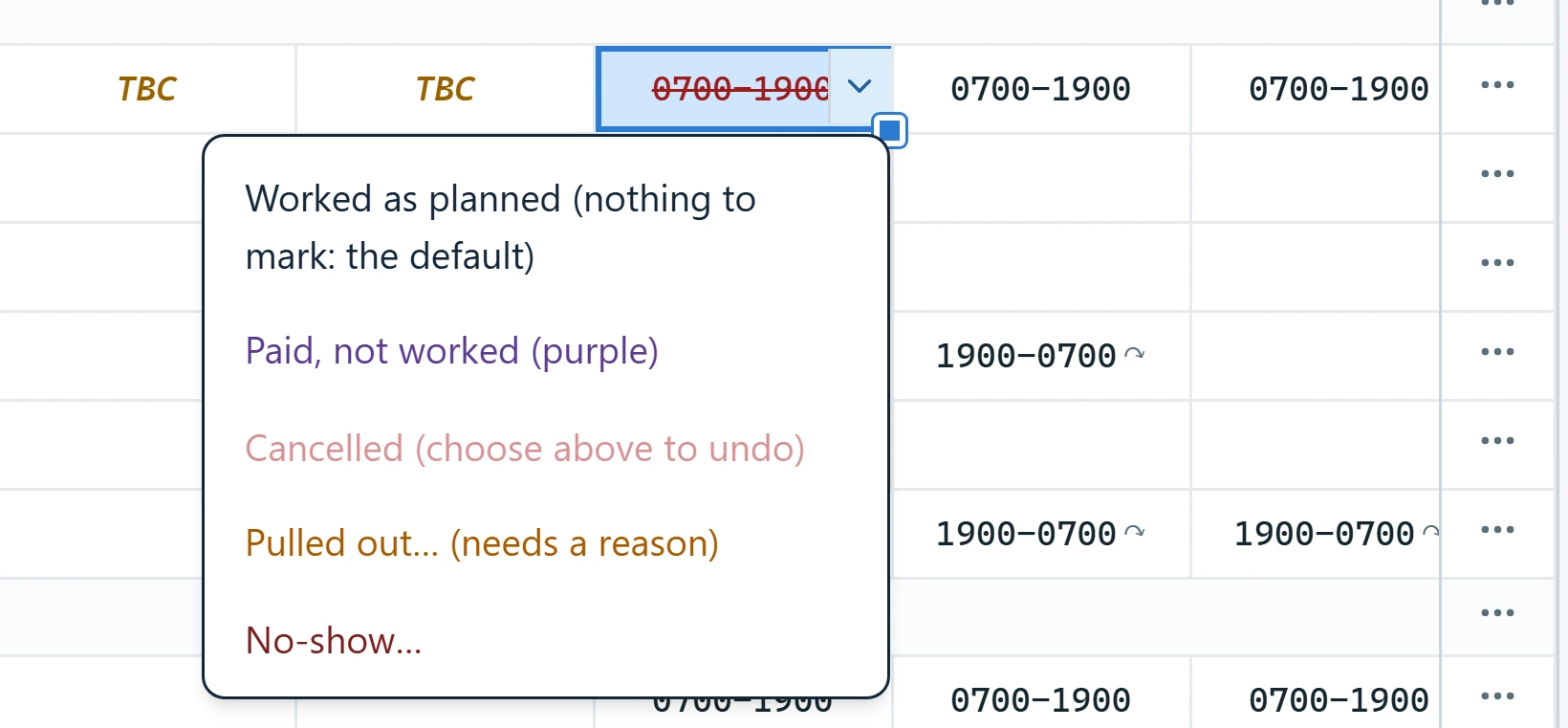
Cancelled, pulled out, no-show: recorded once, kept for good.
Mark a shift from the roster in two clicks, with the reason. It lands on the candidate's record straight away, so you always know who worked what, and why a shift did not happen.
- Paid but not worked, cancelled by the client, pulled out, no-show
- A reason is recorded, with who made the change and when
- The team is alerted the moment a shift falls through
- Select many shifts and mark them together

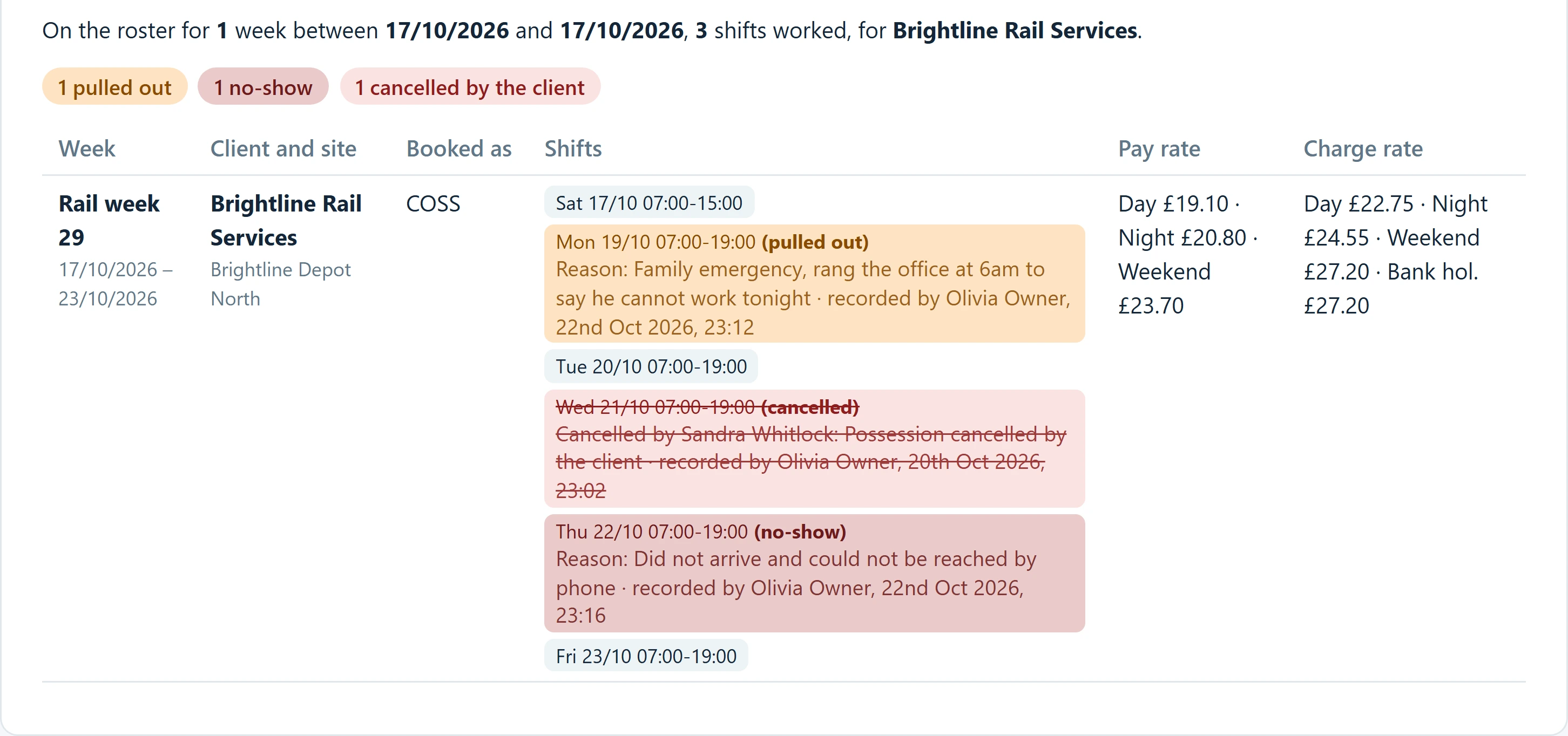
It all follows the person
Every marked shift appears on the candidate's own page with the client, the site, the pay, the charge and the reason, alongside the shifts they worked.
Red means act. Calm means carry on.
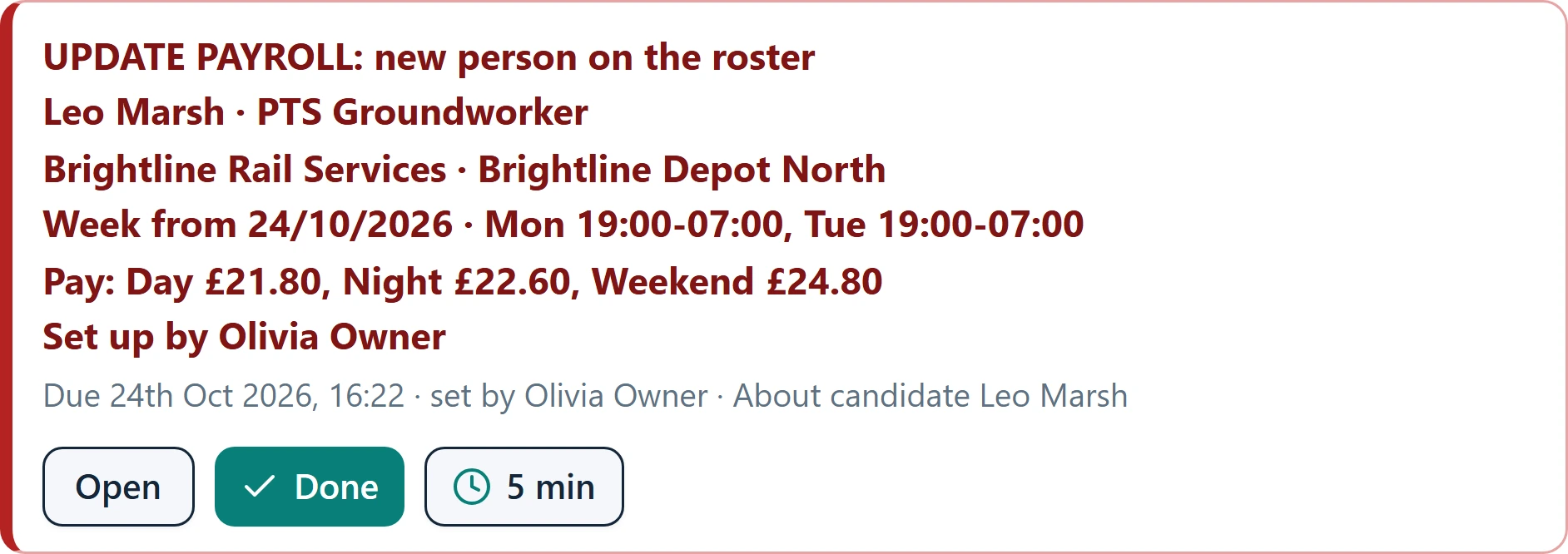
When a pay rate changes or someone is fully set up, the right person gets a red alert with everything they need: who, where, when and how much. It stays until they mark it done, and then everyone else is told.
- Only sent when the details are complete
- Marked done, with a note saved on the record
- The right person is told the moment something needs doing
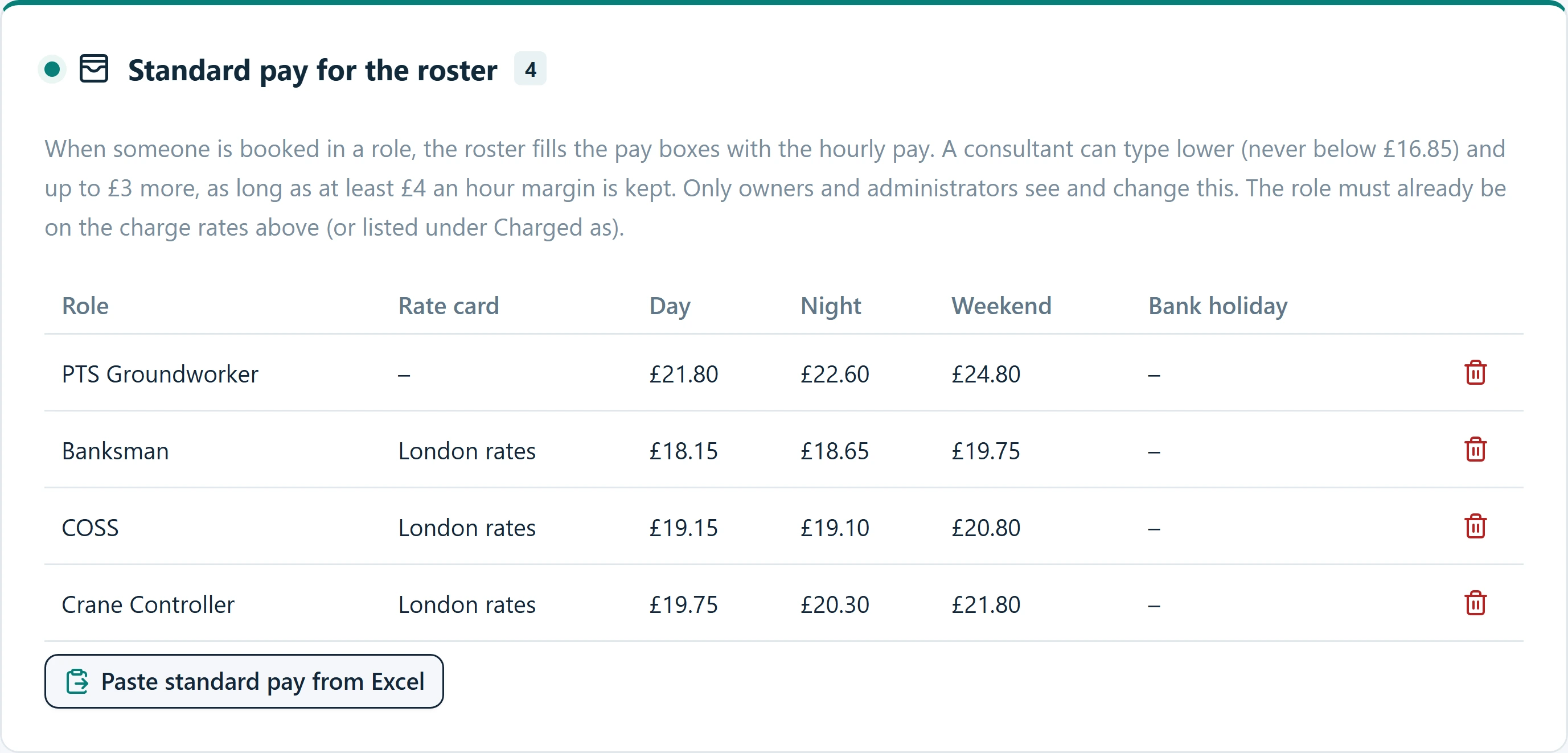
Standard pay for every role, on every client.
Owners and administrators keep each client's standard pay in one place, and can charge a role as another when that is how it is billed. Replace a rate card and the old one is archived, never lost.
- Paste a whole sheet of standard pay at once
- "Charged as" for roles billed under another name
- Old rate cards archived, ready to download any time
Example figures. The rates, the £3 allowance, the £4 margin and the minimum pay shown here are only an example. They can be tailored to suit your own business.
A matrix for the client, without building one by hand.
Every client asks for a skills matrix, and someone ends up building it in Excel, again and again. In Scout it is one click, made from the people actually on the roster. Because it is that quick, you can send one before every shift, so the client can see who holds which tickets and put people where they are best used.
- One click from any gang on the roster, in the roster's order
- Every ticket each person holds, shown at a glance
- Ready to send to the client as an Excel file
- Quick enough to send before every shift, not just when asked
| Hold Ticket | Gang 1 · Brightline Rail Services · Brightline Depot North | ||||
|---|---|---|---|---|---|
| Training Booked | Lookout / Site Warden | PTS Groundworker | General Operative | Crane Controller | Lookout / Site Warden |
| Needs booking | Ella Prince | Ben Carver | Zara Hussain | Ollie Grant | Maya Fletcher |
| COSS | Held | ||||
| Crane controller | Held | ||||
| Lookout | Held | Held | |||
| PTS | Held | Held | Held | Held | Held |
| Small tools | Held | ||||
Green = ticket held, as recorded in Scout. Generated 24 Oct 2026.
Tonight's shift: skills matrix, Brightline Depot North
Hello, here is the skills matrix for tonight's shift, showing the tickets held by everyone booked on Gang 1. Please let us know if you would like to allocate anyone differently.
Scout can send this automatically before every shift, so clients always have an up-to-date picture.
Know who can do what.
Keep teams together, record every competency, and generate a client training matrix straight from what you hold, ready to send. Courses and assessments are recorded on every candidate, and ticket expiry dates can be added if you need them.
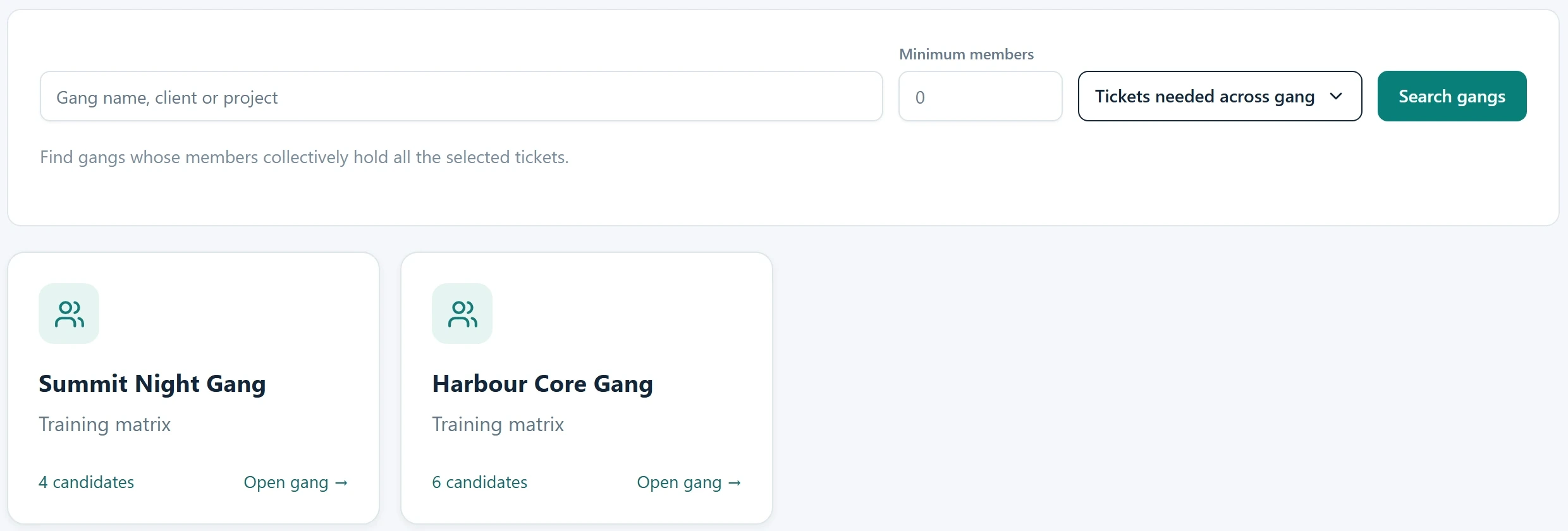
- Find gangs whose members hold every ticket you need
- Assessments recorded as passed, failed or cancelled
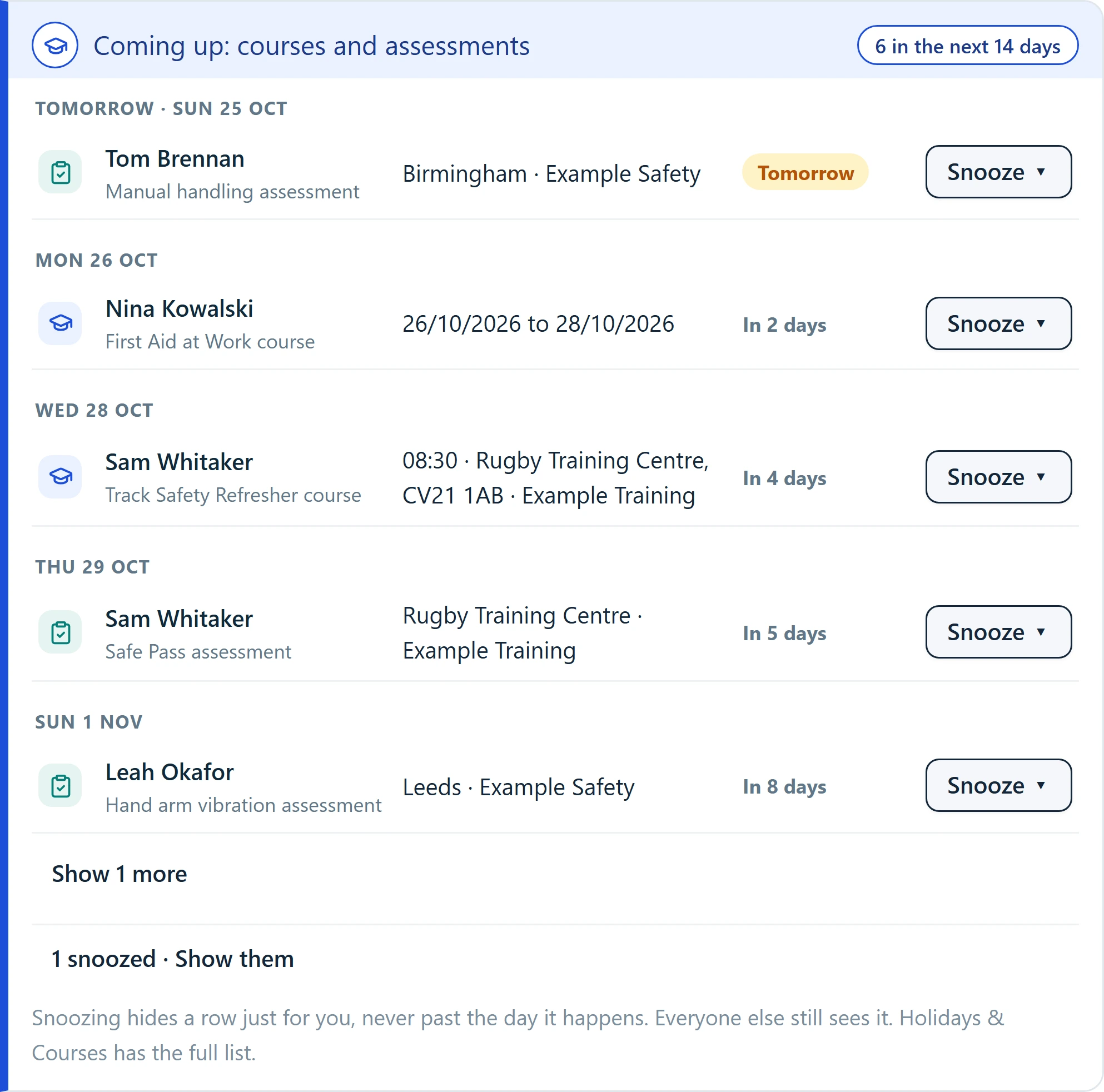
- Courses and assessments coming up, fourteen days ahead
Your team sets the pay. You keep the margin.
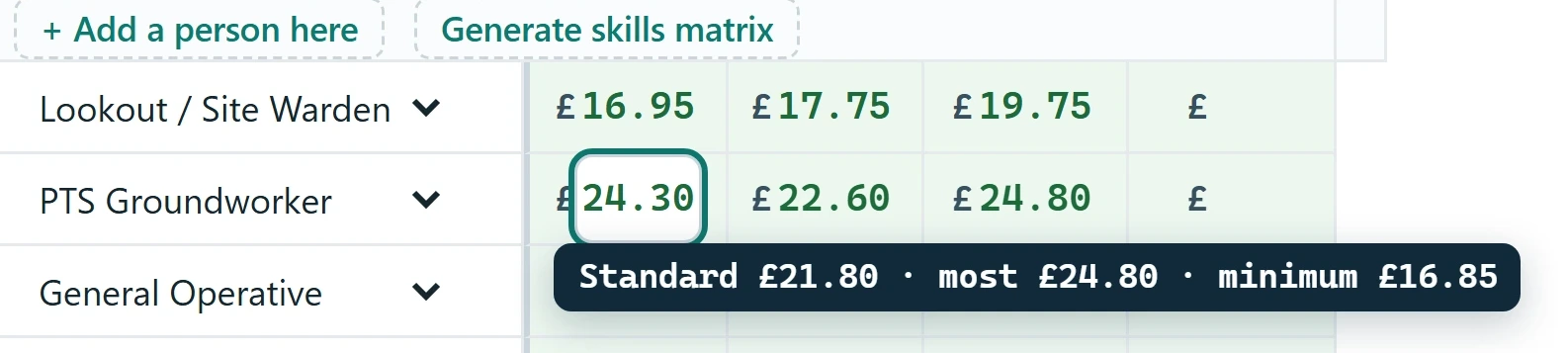
Consultants never see what a client is charged, so they can never decide how much margin to give away. They get a clear pay range for each role, and anything beyond it is a request that comes to you.
Choose a role, the pay fills itself in
Standard pay is set once per client and role.
A floor and a ceiling
A minimum nobody can go below, and a maximum that keeps your margin safe.
Beyond it, they ask
One click to ask for approval, with the reason attached.
Example figures. The £3 allowance, £4 margin and minimum pay shown here are only an example. The margin rules can be tailored to suit your own business.
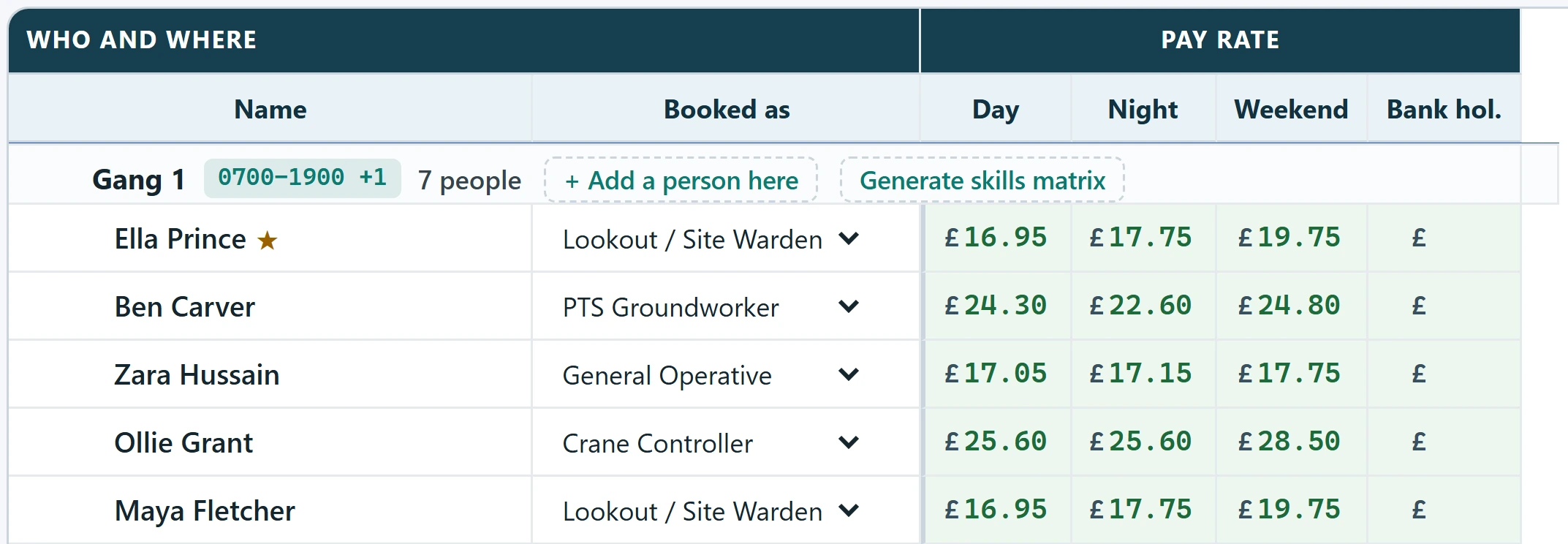
Standard pay, a small allowance above it, and a floor below. Go past the limit and it becomes a request for an owner or administrator to decide.
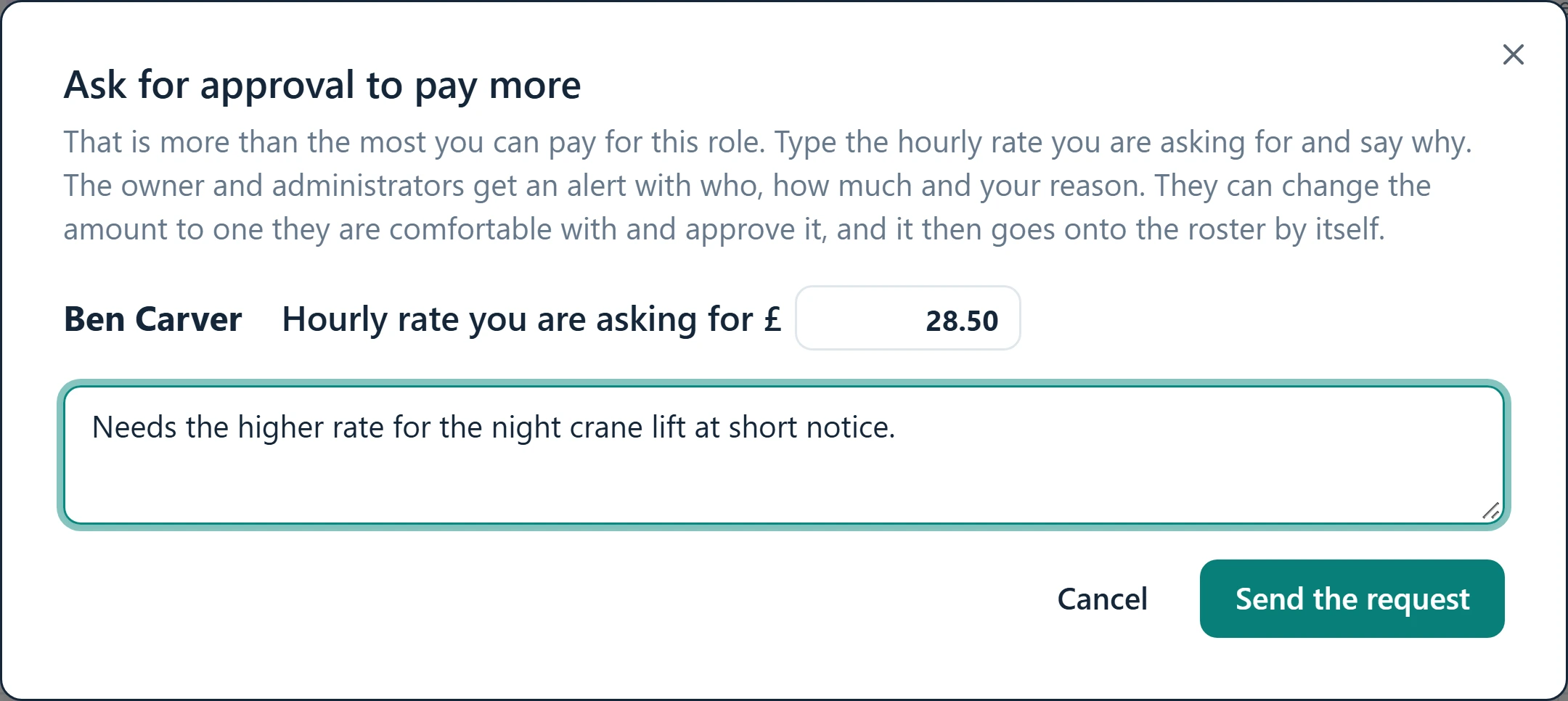
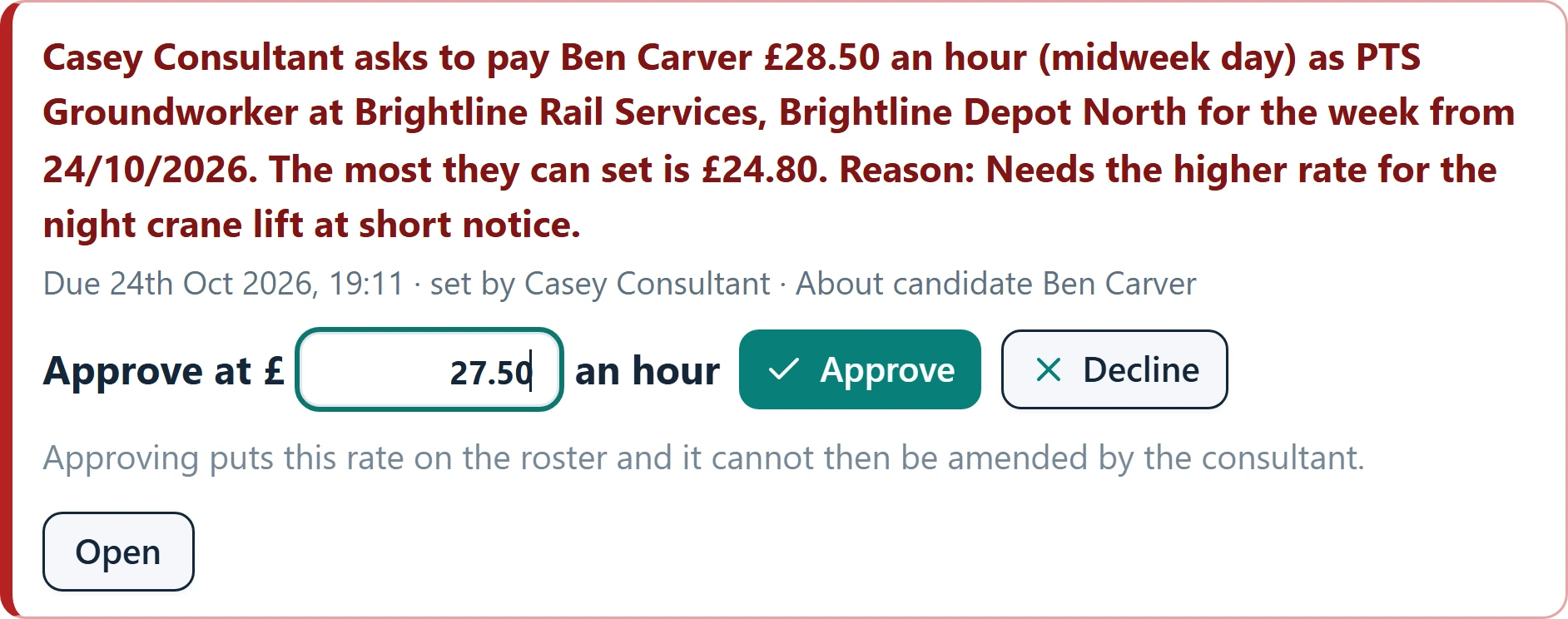
A consultant cannot type past the limit, because Scout stops them. They enter the hourly rate they are asking for and the reason. It goes only to your owners and administrators, who can change the amount to one they are comfortable with, then approve or decline.

The approved rate goes straight onto the roster planner with a padlock, and the consultant cannot amend it. If it needs to change, up or down, they press Change and it goes for approval again. Your Payroll Administrator is told about every change.
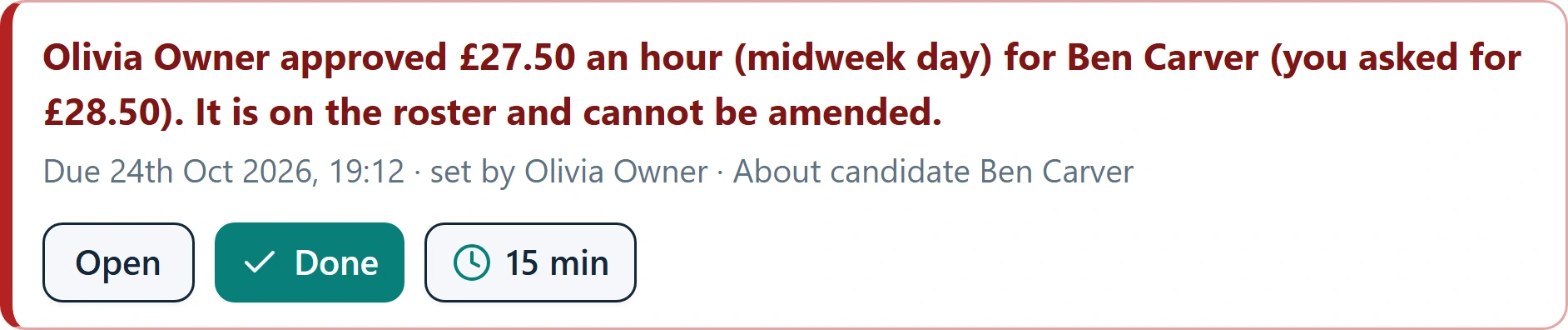
If the approver changed the amount, the consultant sees both figures. Nobody has to chase, and there is a clear record of who agreed what.
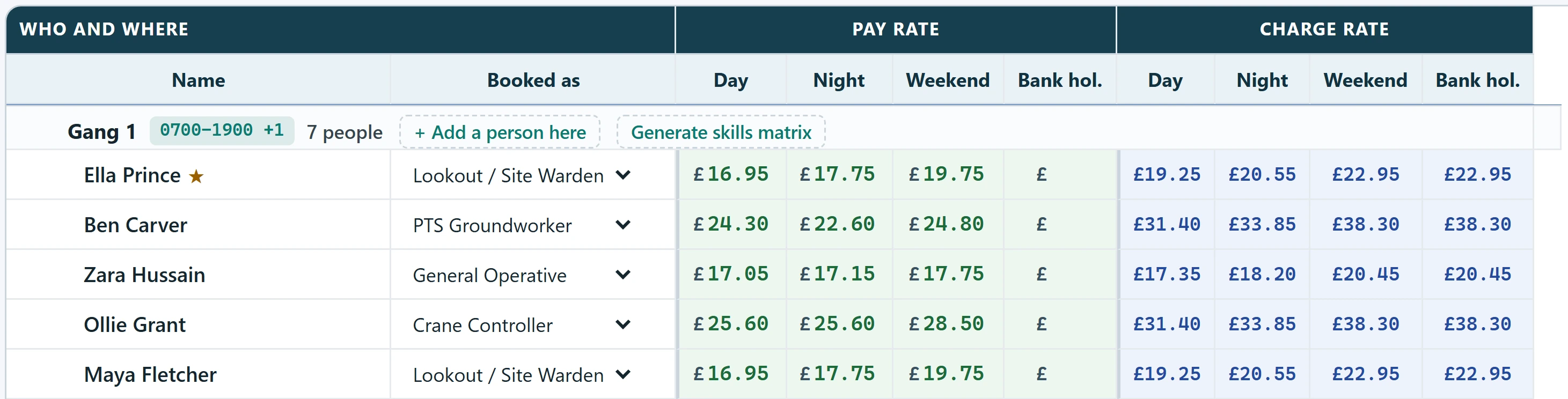
The charge rate sits beside the pay, for owners and administrators only. The figures above are an example: margin rules can be tailored to suit your own business.
Secure sign-in
Nobody gets in without a one-time code sent to an approved email address. Two-step verification or your own company login can be set up too.
Charges stay private
Client charge rates are only ever shown to owners and administrators, and never sent to anyone else.
A permanent history
Notes cannot be edited or deleted, and every change shows who made it and when it happened.
Backed up
Automatic backups are held securely on Cloudflare, with the ability to restore when you need it.
Send it once. Scout does the chasing.
Health and safety briefings go straight to your workforce on WhatsApp. Scout reminds anyone who has not opened theirs, then stops by itself the moment they accept it as read.
New health and safety briefing.
Reminder
Hi Leo, you were sent an important health and safety briefing 2 days ago. It is really important that you open it and read it before your next shift.
Tap to open it and confirm:
Once you have confirmed, these reminders stop.
Working at height
You send it.Scout does the chasing.
Sending a briefing is the easy part. The hard part is the days that follow: ringing and texting people to open it, again and again, until everyone has. With Scout you send it once, and Scout does the chasing for you, on a schedule you choose, until each person has read it and accepted it.
- Send to one person, a gang, or everyone at once
- Friendly reminders every two days, or on a timing you choose
- Reminders stop automatically the moment it is accepted as read
- Every briefing, every reminder and every acceptance logged on the candidate
Preview. This shows how briefings will work. It is not switched on yet, and the wording and timings are only examples.
Send it, then chase for days
- Send the briefing to everyone
- Wait, then ring and text each person who has not opened it
- Do it all again the next day, and the day after
- Guess when each person might actually look at their phone
- Keep your own list of who has read it and who has not
- Carry on until the last person finally opens it
Days of calls and texts, every time a briefing goes out.
Send it once. Scout chases.
- Send the briefing once, to one person, a gang or everyone
- Scout reminds each person who has not opened it, on the timing you set
- Scout learns, from the data it stores, when each person actually reads their WhatsApp briefings, and delivers the briefing and every reminder at that time
- The reminders stop on their own the moment it is accepted as read
- The record builds itself: who opened it, and when
- You only follow up the few who are still outstanding
You send it. Scout does the chasing.
Send once
Pick the briefing and who needs it. It goes out on WhatsApp straight away.
Scout reminds them
Anyone who has not opened it gets a polite reminder, every two days in this example.
They accept it as read
The moment they confirm, the reminders stop and it is recorded with the date and time.
You get your time back
Scout has done the chasing, so you have not. You only deal with the few who are still outstanding.
Leo Marsh
PTS Groundworker · SC-000021Safety briefings
3 sent2 read1 waiting| Briefing | Sent | Reminders | Accepted as read |
|---|---|---|---|
| Working at height | Sun 25/10/2026 09:00 | 1 sent, then stopped | Read and acceptedTue 27/10/2026 at 07:42 |
| Manual handling | Mon 19/10/2026 09:00 | 2 sent, then stopped | Read and acceptedWed 21/10/2026 at 18:05 |
| Site safety update | Tue 27/10/2026 09:00 | Next reminder Thu 29/10 | Waiting to be openedReminders continue until accepted |
Site safety update
4 read2 waiting- EPElla PrinceAccepted Tue 07:55
- ZHZara HussainAccepted Tue 09:12
- OGOllie GrantAccepted Tue 12:30
- MFMaya FletcherAccepted Tue 18:41
- LMLeo MarshReminder due Thu
- BCBen CarverReminder due Thu
Nobody phoned. Nobody texted. Scout only reminds the two who have not yet accepted.
Know who is briefed before they get on site.
Because briefings and the roster live together, Scout can answer the question that really matters: has everyone on tonight's shift read the latest safety briefings? And it can send the briefing again, just before their shift starts.
Tomorrow night, Brightline Depot North
12 booked, 10 have read the latest briefing, 2 have not- JHJoss HallamBriefed, Tue 07:42
- IVInes VargaBriefed, Tue 09:12
- PDPiers DunmoreBriefed, Tue 18:05
- CSCal StrudwickNot accepted yet
- NHNoor HaddadNot accepted yet
Anyone who has not read a required briefing is flagged on the roster. Scout can send it again as a reminder just before their shift is due to start, so it is dealt with before they are on site, not after. You can also send a briefing straight from the roster with the Send briefing button.
Last 90 days, by average time to open
Export the whole list to ExcelScout learns from the data it collects and stores: when each person actually opens their WhatsApp briefings. Slow openers get their first reminder sooner, and every briefing and reminder is delivered at the time of day that person actually reads theirs.
The right person, found in seconds.
Search your whole workforce by ticket, registration, distance from the job and what people have actually done, from the office or from a phone on site.
Candidate directory 3
Export- Filter by ticket, registration status, driving licence and own vehicle
- Search by distance from any postcode
- Search what people have done, in their written work history and their uploaded CVs Preview
Fill jobs from the site, not from the desk.
Jobs do not wait until you are back at a computer, and neither should you. Scout works on any phone, so a consultant standing on site can find the right person, call them, and note down what was said, right there and then. That is reactive job filling, not delayed job filling.
- Search by ticket and distance from the phone in your hand
- Tap to call or WhatsApp the person straight from the result
- Record a live note on the spot, saved to their record at once
- Nothing to write up later, and nothing forgotten on the drive back
Example. Names, distances and wording on these screens are illustrations only.
Troughing in work history
Troughing found in uploaded CV
Troughing in work history and CV
Just ask. Scout gets it done.
Type what you need in plain English. The assistant works out the steps, shows you exactly what it will do, and waits for your yes. Then it does the work and records every step.
One click away, on whatever you are doing.
The assistant sits in the corner of the screen. Open Scout and it is there. Open a spreadsheet, an email or a drawing and it is still there, in front of everything, so help is never hidden behind another window.
- Stays on top of every window until you tuck it away
- Understands plain requests, with no menus to learn
- Always asks for your approval before anything is sent or changed
 Scout Assistant
"Find me PTS Groundworkers within 25 miles of SE1 0AA who have experience with troughing."
Scout Assistant- AWArlo WhitfieldPTS · 4.2 miles · Troughing in work historyMatches
- TOTamsin OkoroPTS · 9.8 miles · Troughing found in uploaded CVMatches
- RPRhys PenhalePTS · 18.6 miles · Troughing in work history and CVMatches
New job for you, Arlo
RolePTS Groundworker
WhereBrightline Depot North, E15
WhenNights, Mon 26 to Fri 30 Oct, 19:00 to 07:00
BringPTS card and PPE
Interested? Tap below.
They tap "Call the office"
It rings the office allocated to that job, straight away. No searching for a number.
Or they tap "I'm interested"
You see it at once, and can ring them while they are still holding the phone.
Everything is recorded
Each message, each reply and each call-back is logged on the candidate's record.
"Send the latest safety briefing to the gang that started today at Brightline Depot North."
Scout Assistant- Send it to all 6 on WhatsApp
- Add a note to each person's record
- Log it in each person's Briefings tab
- Remind anyone who has not opened it, then stop when they accept
"Working at height" was sent by WhatsApp on 24/10/2026 at 09:20, requested by Olivia Owner using the Scout Assistant. Reminders are on until it is accepted as read.
Saved note, 24/10/2026 09:20 · cannot be editedIt shows you the plan and waits for your approval. Nothing is sent without a yes.
Every action is logged with who asked, so there is always a clear trail.
It can only do what the person asking is allowed to do in Scout.
No more searching, copying and pasting, or chasing people for days on end.
Preview. This shows how the Scout Assistant will work. It is not switched on yet, and the wording, names and examples are only illustrations.